PlatkusWorld™ > Software > PowerSwitch
Welcome to PowerSwitch Help.
 Help Overview
PowerSwitch is a very simple widget. It's just a single push button. You push the button and something happens. You're probably reading this help page right now because you're curious to know exactly what happens when you push the button. Well, that's entirely up to you. When you open a new copy of the PowerSwitch widget, pressing the button does nothing (it's a nice and safe widget that way.) The first step is to flip the widget over and define what the button does.
 Preferences Overview
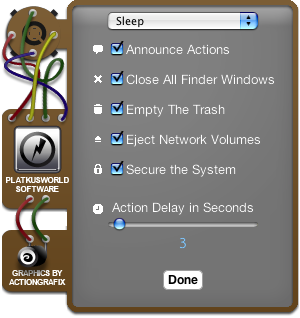
The popup menu at the top defines what the button does. Your choices are as follows:
Disabled - nothing happens
Enabled - simply exits the Dashboard
Sleep - puts the computer to sleep
Log Out - logs out the current user
Restart - restarts the computer
Shut Down - turns off the computer
The five check boxes represent other actions that will take place when the button is pressed. They should all be fairly self explanatory expect for maybe "Secure the System." This option will do a fast user switch out to the login window if the action taken in the popup menu doesn't leave the computer in a secure state.
The last option sets the number of seconds to wait after pressing the button before any action is taken. It's a sliding scale so the delay can quickly be set from 0 to 7000 seconds.
 Useful Tips
The following tips will help you get the most out of PowerSwitch:
If a delay has been specified, the button pulses until time to execute the actions. If you click the button during the delay period, it will cancel the actions and the button will return to its ready state.
As with any Dashboard widget, you can open multiple copies of PowerSwitch. Set one up for each action so you can quickly sleep, logout, restart or shutdown your computer with a single click.
The "Enabled" option simply exits the Dashboard. Choosing "Enabled" with no delay and "Empty The Trash" checked gives you a button on the Dashboard that will empty your trash with one click. Experiment with all the combinations!
When logging out, restarting, or shutting down, PowerSwitch performs the same action that you would get if you chose the same option from the Apple menu. This means that any unsaved documents will prompt you to save them and, if not dismissed by the user, will eventualy cancel the action. You can feel confident that PowerSwitch will not cause you to lose any unsaved changes.
So you can't figure out how to drag PowerSwitch to where you want it? Try dragging on the Heads-Up-Display that appears around the button. The button itself does not allow dragging so that it doesn't accidentally get moved when being pressed.
If you're wondering how PowerSwitch got those fancy graphics, click the capacitor on the back.
